Apple's Voice Memos app does not have a built-in merge feature. The workaround most people use — exporting to a Mac, editing in GarageBand or Audacity, then importing back — takes 15+ minutes. With Combine Voice Memos +, the whole process takes under a minute, directly on your iPhone or iPad.
What you need
- ✓ iPhone or iPad running iOS 16 or later
- ✓ Two or more voice memo recordings you want to merge
- ✓ Combine Voice Memos + installed (one-time purchase)
Step-by-step: How to merge voice memos on iPhone
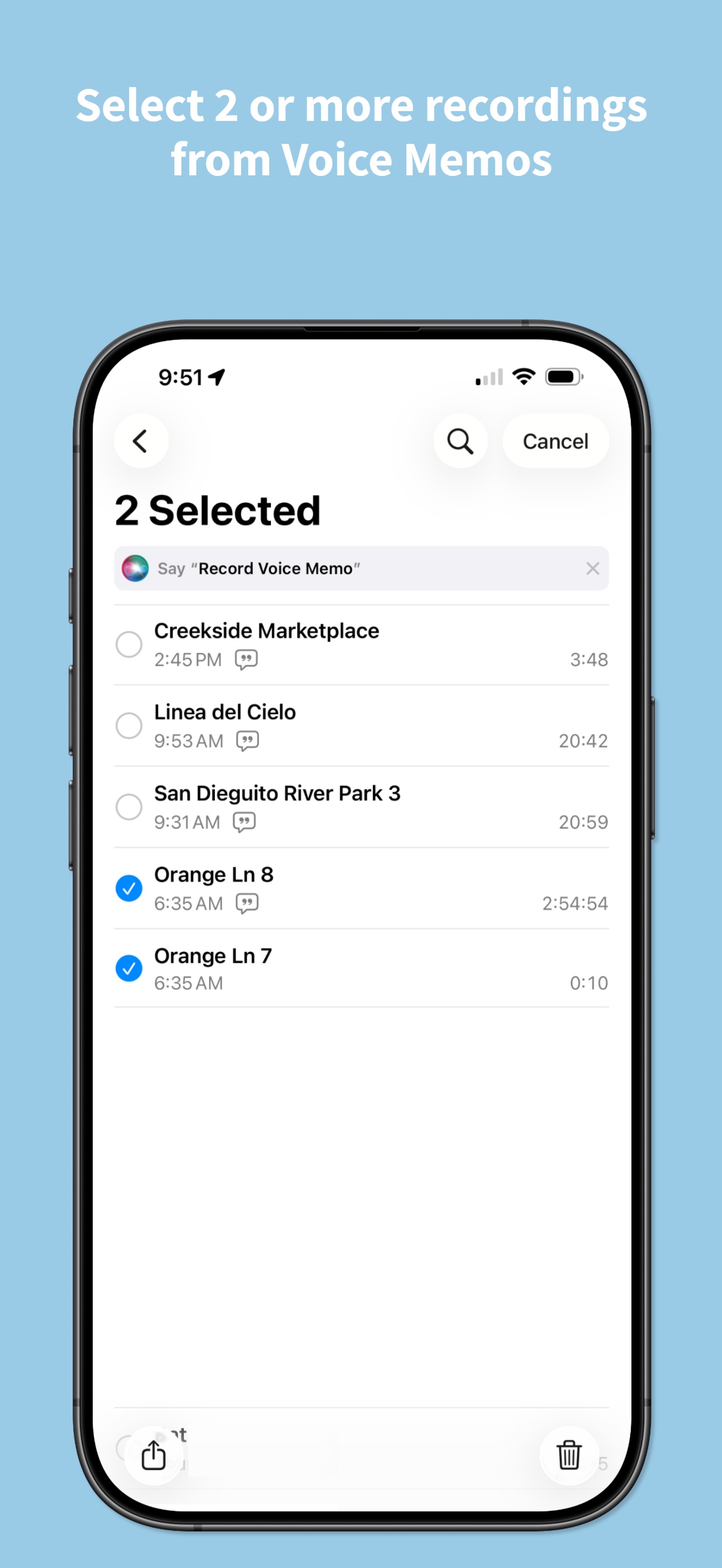
Open Voice Memos and select your recordings
Open the Voice Memos app on your iPhone. Tap Select in the top-right corner, then tap each recording you want to merge. You can select two or more clips — there is no limit.
Make sure all clips are checked before moving to the next step.
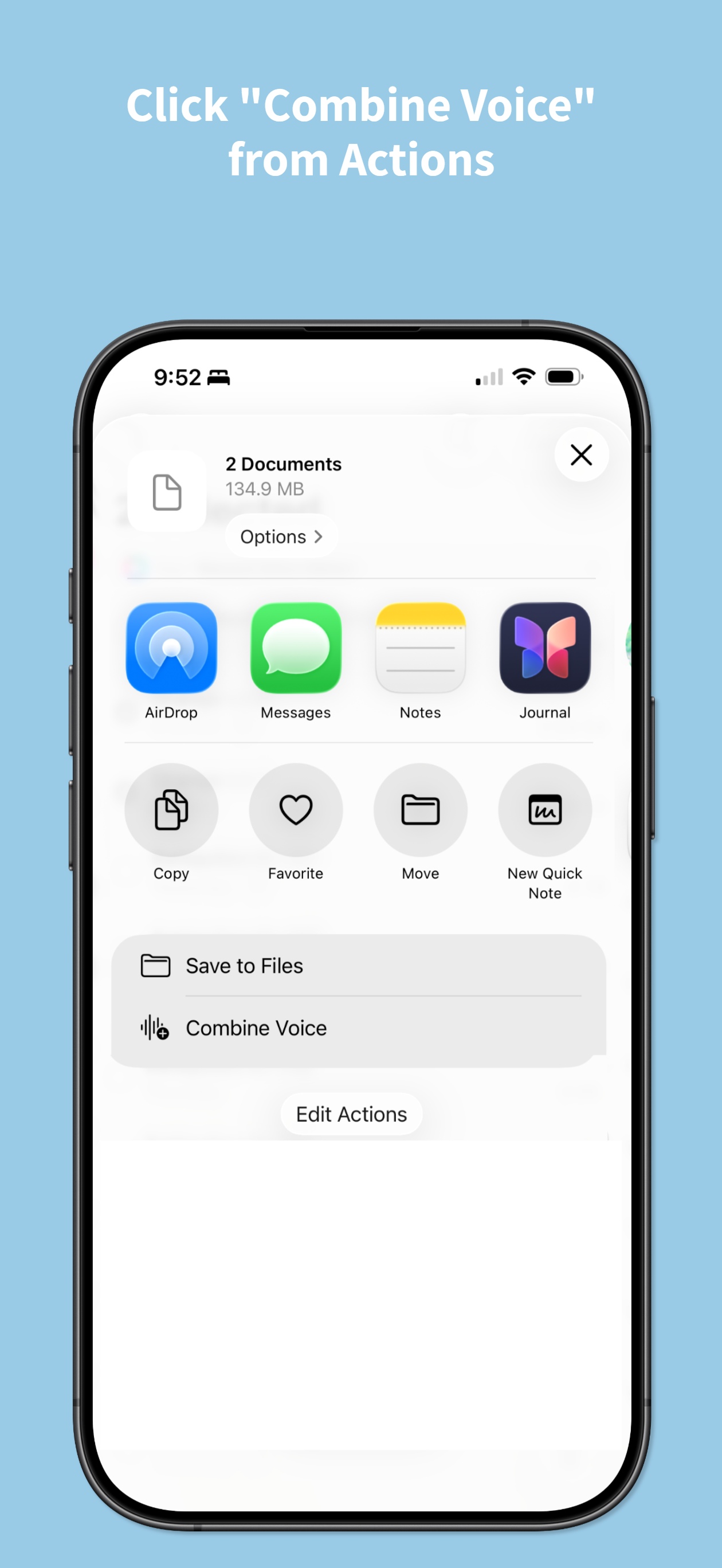
Tap Share and choose Combine Voice
Tap the Share icon at the bottom of the screen. The iOS share sheet will open. Scroll down in the actions list and tap Combine Voice.
If you do not see it, scroll down past the app row to the actions list below. It may also be under Edit Actions if you haven't added it yet.
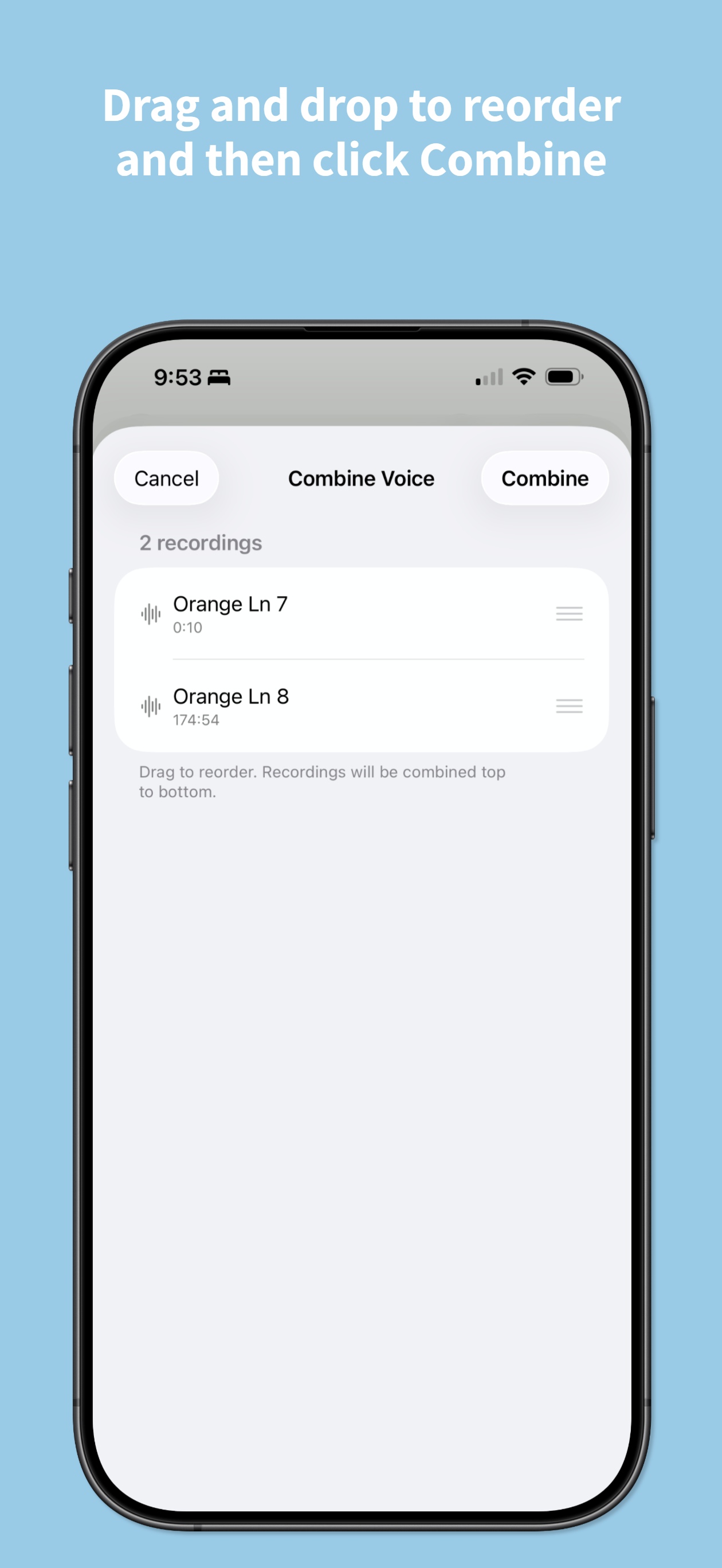
Reorder clips by dragging
Your selected clips appear in a list. Drag and drop them into the exact order you want. Tap the play button next to any clip to preview it before combining.
This step matters most if your recording was split by an interruption — get the order right before merging.
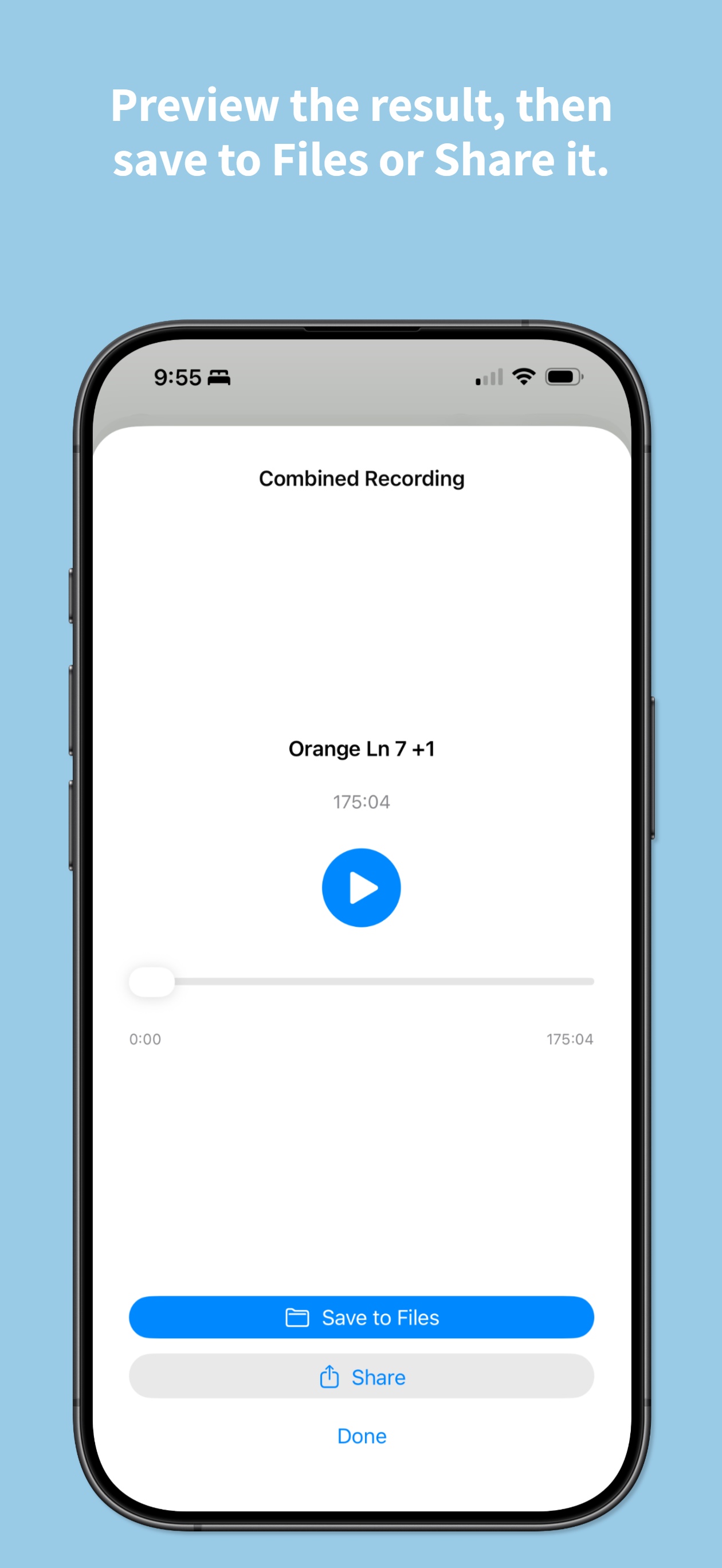
Preview and save the merged recording
Tap Combine. The app merges the clips into a single file. You can preview the full merged recording before saving.
Then tap Save to Files to keep it, or use the share button to send it anywhere — back to Voice Memos, Messages, email, or any other app.
Why do Voice Memos get split in the first place?
Several things interrupt an active Voice Memos recording:
- Incoming phone call — iOS automatically stops the recording when you answer
- Bluetooth device switching — connecting or disconnecting AirPods or a headset can stop and restart recording
- Accidental tap — the red stop button is easy to tap by mistake
- App going to background — on some older iOS versions, backgrounding Voice Memos stops recording
All of these leave you with two or more separate clips that should have been one file. Combine Voice Memos + fixes this in seconds.
Frequently asked questions
Can I merge more than two voice memos at once?
Yes. There is no limit. Select as many clips as you need in Voice Memos, then follow the same steps above.
Does this work on iPad?
Yes. Combine Voice Memos + runs on both iPhone and iPad. The Voice Memos share sheet workflow is identical on both devices.
Do I need a computer or internet connection?
No. The app works entirely on-device. No Mac, no cloud upload, no internet connection required. Your recordings never leave your iPhone.
Will merging reduce audio quality?
No. The app joins the audio files without re-encoding. The merged file preserves the original quality of your recordings.
Where does the merged file get saved?
You choose. After combining, you can save directly to the Files app, share back to Voice Memos, or send via AirDrop, Messages, email, or any other app.
Is there a free trial?
Combine Voice Memos + is a one-time purchase with no subscription. There are no recurring fees or hidden costs.